Why Does 4K LIVE IPTV Buffer? 9 Fixes
To fix 4K LIVE IPTV buffering, first test another channel and another legal streaming app. Then measure speed at the television, switch to Ethernet or strong 5 GHz Wi-Fi, pause background traffic, restart the network, enable hardware decoding, use a normal buffer, clear only the app cache, and lower stream quality as a diagnostic test.
Buffering means the player is consuming video faster than new data reaches its temporary storage. The cause can be the stream source, internet route, home Wi-Fi, device, or player configuration.
The quickest solution comes from identifying which layer fails. Work through these checks in order rather than reinstalling everything after the first freeze.
Screenshot placeholder 1: A 4K television with a buffering icon and four diagnostic labels: source, internet, Wi-Fi, device.
Alt text: Main causes of 4K LIVE IPTV buffering
1. Determine Whether One Channel or Everything Fails
Open three authorized channels from different categories. Then open a mainstream legal video app on the same device.
| Result | Most likely area to investigate |
|---|---|
| One channel fails | That channel feed or provider mapping |
| All channels in one player fail | Account, playlist, player, or provider |
| Every streaming app fails | Device, network, or ISP connection |
| Only 4K fails | Bandwidth, decoder, HDMI, or 4K source |
| Only evening playback fails | Local or upstream peak-time congestion |
This 60-second comparison prevents unnecessary router changes when the problem belongs to a single feed.
2. Measure the Connection at the Streaming Device
Run a speed test on the Firestick, television, or box—not on a phone in another room. Test several times while the problem occurs.
Record download speed, latency, and whether the result changes sharply between runs. A stable 40 Mbps connection is often more useful for one stream than a result that jumps between 10 and 200 Mbps.
Netflix recommends 15 Mbps or higher for its 4K UHD service, while Google specifies at least 20 Mbps for 4K on its streaming devices. For variable live video and a busy household, reserve roughly 30–50 Mbps per 4K stream. (Netflix, Google)
3. Use Ethernet or Improve Wi-Fi
Ethernet is the best diagnostic because it removes wireless interference. Connect the device to the router or a wired mesh node and retest the same stream.
If Ethernet works, improve Wi-Fi:
- Use 5 GHz when the router is nearby.
- Move the router or mesh node into the open.
- Keep the device away from metal and dense walls.
- Use the Firestick HDMI extender behind the TV.
- Disconnect unused repeaters that create a weak extra hop.
- Check that the device is connected to the intended access point.
The 2.4 GHz band reaches farther but is often more crowded. It may still be better through several walls, so compare actual stability rather than assuming one band always wins.
4. Pause Competing Traffic
Game downloads, cloud photo backups, operating-system updates, security-camera uploads, and other 4K streams can fill the connection or increase latency.
Pause them for ten minutes and repeat the test. If playback stabilizes, schedule large transfers outside viewing hours or configure QoS/device priority in the router.
QoS cannot create bandwidth. It decides which traffic receives attention first when the connection is busy.
5. Restart in the Correct Order
Restarting clears temporary connection and memory problems. Use this order:
- Close the IPTV player.
- Power off the streaming device.
- Restart the modem/router according to the ISP’s instructions.
- Wait until the internet status is fully restored.
- Start the streaming device.
- Open the player and test the same channels.
Avoid frequent factory resets. They erase useful settings and rarely fix upstream congestion.
6. Enable Hardware Decoding
4K HEVC video is demanding. Hardware decoding lets the device’s dedicated video engine handle the stream efficiently.
Open the player’s playback settings and select hardware decoding or the system decoder. Restart the stream after changing it.
If video becomes black, green, or corrupted, return to the previous setting and test a different authorized stream. A codec mismatch or unusual source profile may require another decoder.
7. Choose the Right Buffer Size
The player buffer stores a small amount of video before display. A normal or medium buffer is the best starting point.
Choose a larger value when short network fluctuations cause brief pauses. Expect additional live delay. A huge buffer does not fix a server that stops sending data, and it can make channel changes slower.
For sports, balance smoothness against delay. For news or general television, a few extra seconds may be unnoticeable.
8. Clear Cache and Free Storage
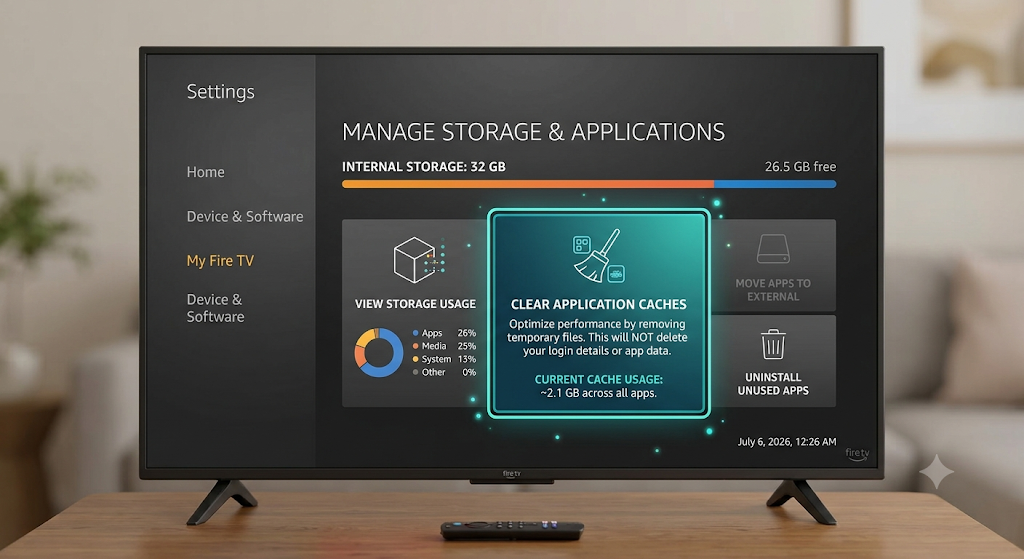
Cache is temporary data used to speed normal operation. Clear it when the app becomes slow, guide data behaves strangely, or an update leaves corrupted files.
On Fire TV, open Settings → Applications → Manage Installed Applications → player name → Clear cache. Do not choose Clear data unless the account details are backed up because it normally resets the app.
Remove unused apps and downloads. Aim to keep at least 1 GB free when possible; an almost-full device may struggle to update apps or manage temporary
9. Lower Quality as a Diagnostic Test
Select a legal HD version of the same channel. If HD is stable while 4K repeatedly buffers, the problem is related to bandwidth, 4K decoding, device output, or the 4K source.
Check the complete signal chain:
- The account includes an authentic 4K source.
- The device supports the source codec.
- Display resolution is set correctly.
- The HDMI input supports 4K and HDCP requirements.
- The television supports the selected HDR format.
- The network has stable capacity at the device.
Using HD is also a reasonable permanent choice on a smaller screen or unstable connection. Reliable playback matters more than a resolution badge.
What About DNS or a VPN?
DNS converts a service name into a network address. Changing DNS may help when name resolution is slow or incorrect, but it rarely fixes continuous buffering after a stream has connected.
A VPN changes the route and adds encryption. It may help if the original route is unusually poor, but it can also reduce speed. Compare the same legal stream with and without it. Use a nearby server, and follow local law and the platform’s terms.
Neither tool can repair an overloaded provider server.
When to Contact the Provider or ISP
Contact the authorized IPTV provider when one feed fails across multiple devices and connections, authentication errors persist, or the EPG and stream addresses appear incorrect. Send the channel name, time, device, app version, and a description—never post your password publicly.
Contact the ISP when all services slow down, wired speed is far below the plan, the modem repeatedly disconnects, or packet loss appears across several destinations.
Good troubleshooting evidence shortens the support conversation.
A Stable Baseline Configuration
| Component | Starting recommendation |
|---|---|
| Connection | Ethernet; otherwise strong 5 GHz Wi-Fi |
| Capacity | 30–50 Mbps available per 4K live stream |
| Decoder | Hardware/system |
| Buffer | Normal or medium |
| Storage | At least 1 GB free where possible |
| Updates | Current device OS and official player |
| Testing | Same channel, same time, one change at a time |
Change only one variable between tests. Otherwise, you will not know what fixed the problem or what caused a new one.
Frequently Asked Questions
Why does 4K LIVE IPTV keep freezing with fast internet?
The speed plan may be fast while Wi-Fi at the television is weak, latency is unstable, the source is congested, or the device cannot decode the video smoothly. Test another app and Ethernet to isolate the cause.
What is the best internet speed for 4K LIVE IPTV?
For one live 4K stream, plan for 30–50 Mbps of stable available capacity. Add more for other household activity. Stability and packet loss matter as much as the headline speed.
How often should I clear the IPTV cache?
Only when the app is slow, temporary files appear corrupted, or support recommends it. Routine daily clearing is unnecessary and does not increase internet bandwidth.
Will a bigger buffer stop IPTV freezing?
It can smooth short connection drops but increases delay. It cannot solve long source outages, severe Wi-Fi loss, or insufficient sustained bandwidth.