How to Set Up 4K LIVE IPTV on Firestick 4K
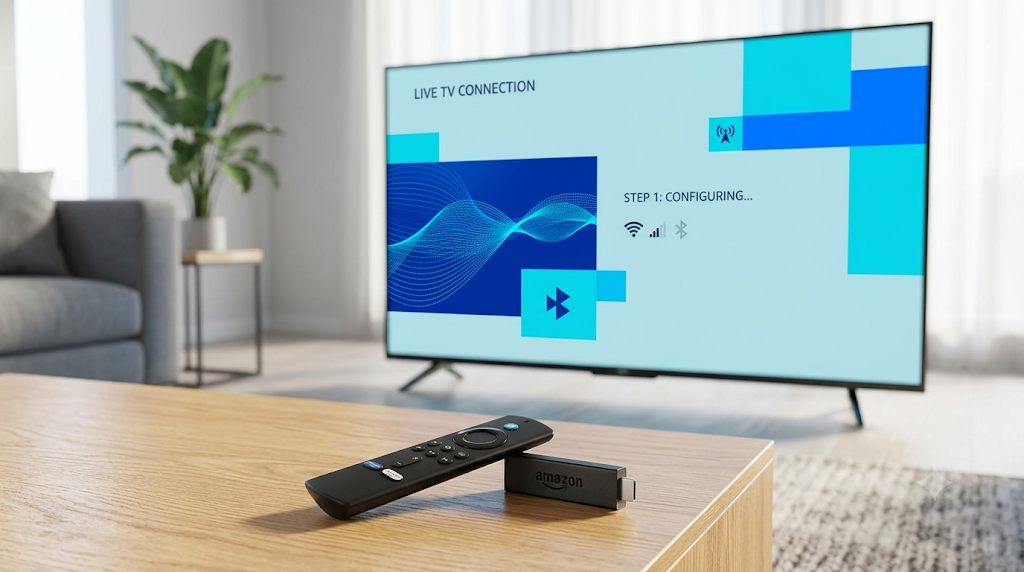
To set up 4K LIVE IPTV on Firestick, connect the stick to a stable network, install a reputable IPTV player from an official app store when available, and add the authorized M3U or account details supplied by your licensed provider. Then load the EPG, enable hardware decoding, create favorites, and protect the account credentials.
The Fire TV Stick 4K is popular because it is compact, easy to move between televisions, and supports modern video formats. The setup remains safe and manageable when the player comes from a trusted source and the playlist is legally authorized.
This guide explains the process without relying on a particular content seller. Menu labels may change after Fire OS or app updates, but the underlying steps remain the same.
What You Need Before Starting
Prepare the following:
- A Fire TV Stick 4K connected to a compatible television
- The original power adapter rather than a low-power TV USB port
- Stable Ethernet or 5 GHz Wi-Fi
- A licensed IPTV or live-TV subscription
- The provider’s M3U URL, supported account credentials, or official app
- An EPG/XMLTV URL if it is supplied separately
- A unique account password and a safe place to store it
An M3U URL is a link that points the player to a playlist. An EPG URL usually points to XMLTV data containing schedules and program information. Credentials must remain private because they may grant access to the subscription.
Step 1: Connect and Update the Firestick
Plug the Firestick into an HDMI port and power it from the included wall adapter. Complete Amazon’s on-screen setup, then open Settings → My Fire TV → About → Check for Updates or the closest current menu path.
Install available updates and restart the device. An updated operating system reduces app compatibility and security problems.
Next, confirm the network under Settings → Network. Select a strong 5 GHz connection or use a compatible Ethernet adapter. If the Firestick is hidden behind a metal television panel, the included HDMI extender can sometimes improve wireless reception.
Step 2: Install a Trusted IPTV Player
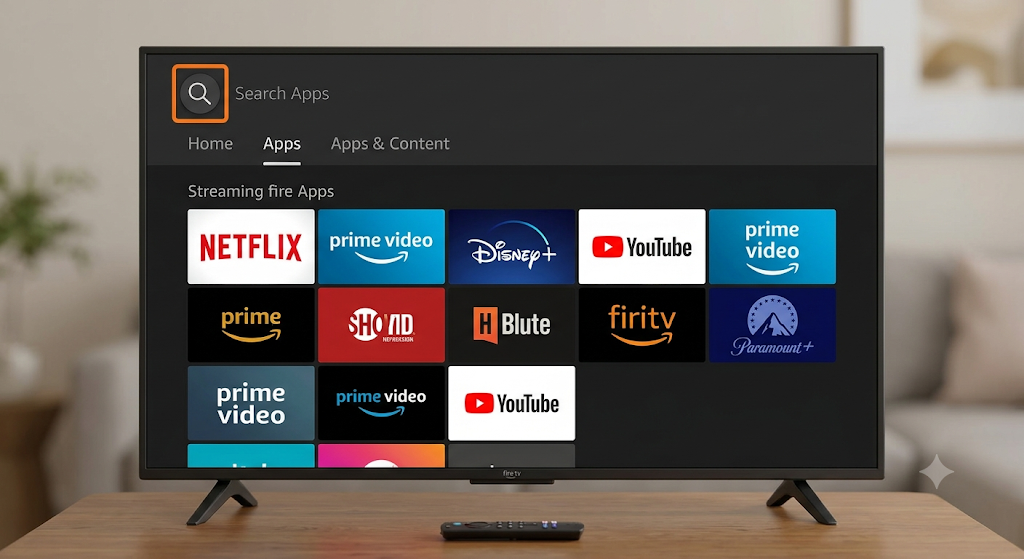
Search the Amazon Appstore first. Availability differs by country and can change, so use the official store listing provided by the player developer.
An IPTV player normally contains no channels. It is a media tool that organizes content from a provider or playlist you are authorized to use.
Before installing, check:
| Check | Why it matters |
|---|---|
| Developer identity | Avoid cloned apps using a familiar name |
| Official website link | Confirms the legitimate listing |
| Recent maintenance | Improves compatibility and security |
| Privacy permissions | A player should not request unrelated access |
| Login formats | Must support the provider’s approved method |
If a legitimate player is unavailable in your regional store, follow only the developer’s official installation documentation. Do not download modified APK files or random “premium unlocked” packages; they can contain malware or credential stealers.
Step 3: Add Your Authorized Service
Open the player and select its playlist or account option. The wording varies, but most players offer one or more of these methods.
M3U playlist
Choose Add playlist → M3U URL. Enter a recognizable playlist name and carefully type or paste the URL supplied by the licensed service.
The link may contain a username and password inside it. Never show it in a screenshot, support forum, or public video.
Provider credentials
Some players accept a server address, username, and password in separate fields. Enter the exact server URL, including https:// when supplied.
Do not guess or change the port. A single missing character can produce an authentication or “playlist unavailable” message.
Official service app
Some licensed platforms use their own Fire TV app and account sign-in. Prefer this route when the provider supports it because updates, billing, DRM, and content rights are managed in one place.
Step 4: Add and Synchronize the EPG
If the program guide does not load automatically, open the player’s EPG, TV Guide, or Playlist settings area and add the XMLTV URL supplied by the provider.
Then:
- Select the correct time zone.
- Trigger Update EPG or Refresh guide.
- Wait for the download to finish.
- Compare two current programs with what is playing.
- Adjust only the EPG time offset if every listing is shifted by the same amount.
Do not use a time offset to repair channels with completely wrong listings. That usually requires the provider to correct channel identifiers or mapping.
Step 5: Optimize Playback
Start with conservative settings. Changing every option at once makes troubleshooting difficult.
| Player option | Recommended starting point | Reason |
|---|---|---|
| Video decoder | Hardware | Uses the Firestick’s video-decoding hardware |
| Buffer | Normal or medium | Balances stability and live delay |
| Frame-rate matching | Test on your TV | Can reduce motion judder |
| Auto-start | Off during setup | Prevents a bad stream from reopening repeatedly |
| External player | Off initially | Keeps diagnosis inside one app |
Open a licensed HD channel first, then a verified 4K stream. If HD works but 4K does not, check the source tier, television, HDMI input, network capacity, and device display settings.
Google lists 20 Mbps as a minimum for 4K on its streaming devices, while Netflix recommends 15 Mbps for its 4K UHD service. For live 4K, aim for 30–50 Mbps of stable capacity at the Firestick to leave headroom for variations and other devices. (Google, Netflix)
Screenshot placeholder 2: IPTV player settings showing hardware decoding and normal buffer.
Alt text: Best Firestick settings for 4K LIVE IPTV playback
Step 6: Organize Channels and Parental Controls
Create a favorites group containing only the channels used regularly. A smaller daily list speeds navigation and avoids repeatedly loading a huge category.
Hide unwanted categories when the player permits it. Set a parental-control PIN for adult or purchase-restricted areas, and do not reuse the Fire TV account password as the PIN.
Use the EPG to open channels rather than depending only on a logo grid. Program information makes the service easier for everyone in the household to navigate.
Step 7: Protect and Maintain the Setup
Keep the player and Fire OS updated. Once a month, check free storage under the Fire TV settings and remove apps you no longer use.
Clear the player cache only when menus become slow or temporary data appears corrupted. Clear cache removes temporary files; Clear data normally erases the app setup and login. Save authorized credentials before resetting anything.
Never allow an unknown seller to control the Firestick remotely. A legitimate support representative can explain menu steps without asking for your Amazon password, email password, or payment-card PIN.
Common Setup Errors
“Invalid login”
Retype the server address, username, and password. Check capitalization, accidental spaces, subscription status, and whether the provider limits simultaneous devices.
“Playlist cannot be loaded”
Open another legal streaming app to confirm the internet works. Restart the player, verify the URL, and ask the provider whether the playlist address changed.
Channels load but the guide is empty
Refresh the EPG, check the XMLTV URL, confirm the time zone, and ensure the device clock is correct. A very large guide may take several minutes to process.
Video freezes every few minutes
Compare Ethernet with Wi-Fi, pause background downloads, enable hardware decoding, and test a second channel. If only one feed fails, report that channel to the authorized provider.
Sound but no picture
Change the video decoder only as a test. Also check whether the television and selected HDMI input support the stream’s resolution, HDR format, and HDCP requirements.
Final Setup Checklist
- Fire OS and player are current.
- The player came from an official source.
- Subscription and content are authorized.
- Credentials are stored privately.
- EPG matches the correct time zone.
- Hardware decoding is enabled.
- Ethernet or strong 5 GHz Wi-Fi is stable.
- Favorites and parental controls are configured.
- At least 1 GB of device storage remains free where possible.
Once these checks pass, the Firestick should provide a clean, repeatable 4K LIVE IPTV experience. If playback later changes, isolate the channel, app, network, and device before reinstalling everything.
Frequently Asked Questions
Can I install 4K LIVE IPTV on Firestick 4K?
Yes. Install a reputable compatible player or the licensed provider’s official app, then use only authorized account or playlist details. A player by itself does not include television channels.
Which IPTV login method is easiest on Firestick?
Separate server, username, and password fields are often easier to check than a long M3U URL. Use whichever secure method the licensed provider officially supports.
Why is my IPTV EPG missing on Firestick?
The EPG URL may be absent, expired, incorrectly mapped, or set to the wrong time zone. Refresh it, verify the XMLTV address, and contact the provider if only certain channels remain unmatched.
Should I use Clear cache or Clear data?
Try Clear cache first because it removes temporary files without normally deleting the setup. Clear data resets the app, so use it only after saving the authorized login details.